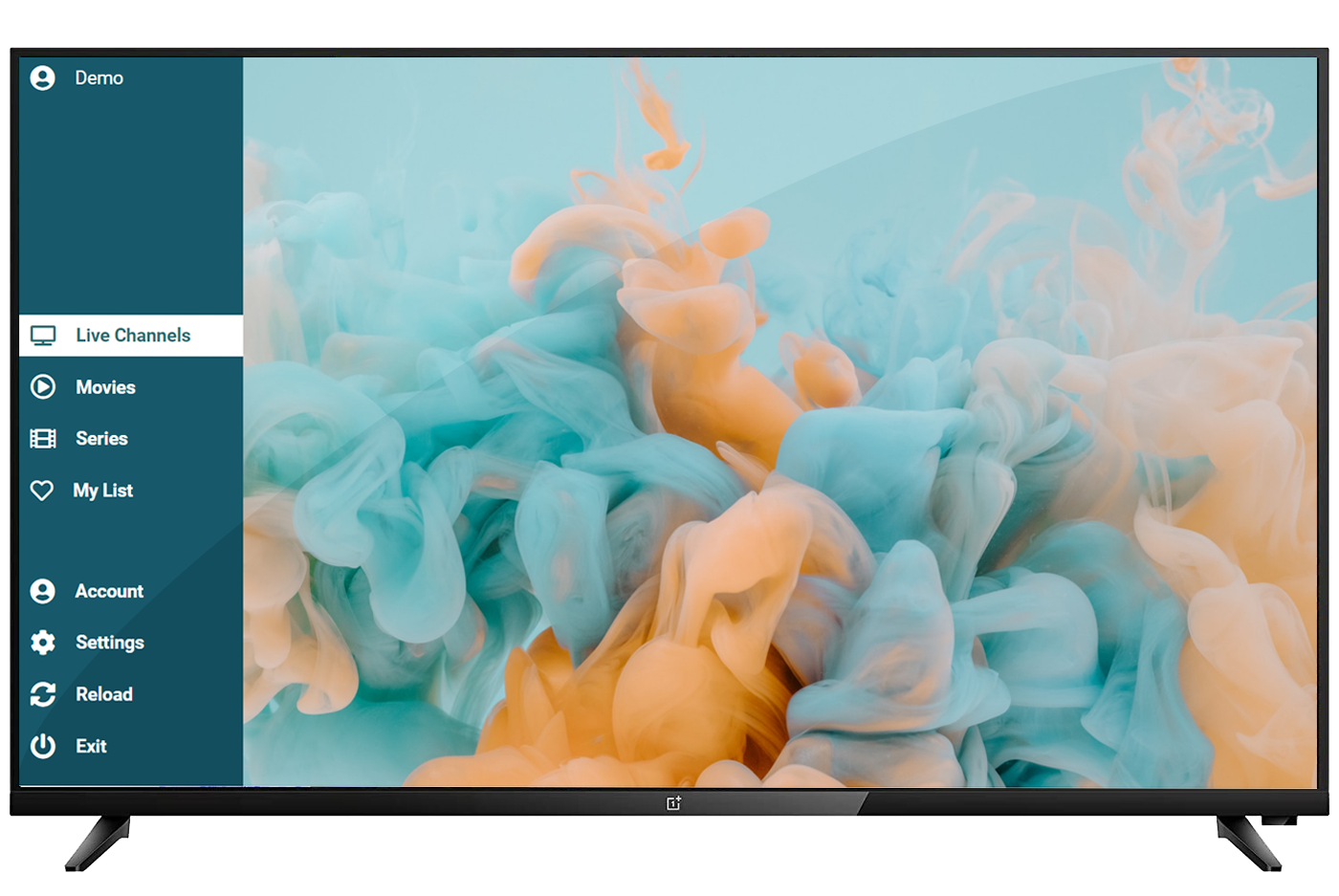
How the Duplecast IPTV Player Works
Install Duplecast on your Smart TV or Android device, connect your legal playlist, and start watching Live TV, VOD, and series in minutes.
-
Step 1. Install Duplecast IPTV Player
Install the Duplecast IPTV player on your Smart TV or streaming device and start your 15-day free trial with full access to Live TV, VOD, and series. Setup guides are available for Samsung Smart TV (Tizen & Orsay), LG Smart TV (webOS & Netcast), Philips Smart TV, Sony Smart TV, Vestel Smart TV, Hisense Smart TV, TCL Smart TV, VIDAA OS TVs, Foxxum platform, Android TV, Google TV, and Amazon Fire TV. Get the app from your device's store or follow our step-by-step installation guides — no payment required to begin.
Installation guides → -
Step 2. Get your device information
Open the Duplecast app settings to find your Device ID, Device Key, and App Version. These details are essential for managing your device.
How to get My Device ID and Device Key → -
Step 3. Add your playlist
Open Duplecast and add your playlist using the “Add a playlist” button in the app.
Manage Device →Reminder: Duplecast does not provide channels or subscriptions. You are responsible for the content you add and must comply with copyright law. See our Important Notice.
-
After your 15-day free trial
Step 4. Activate your license
Enter your Device ID and Device Key on the website to activate your license and keep streaming without interruption.
- Yearly license from $3
- Secure PayPal checkout
- Instant activation online